

From PixelMint to the current app
Jivaro launched the original tool in October 2024 as PixelMint, a small browser utility for resizing several images without installing desktop software. It solved the immediate problem—turn a folder of oversized files into smaller files—but the job rarely ends at width and height.
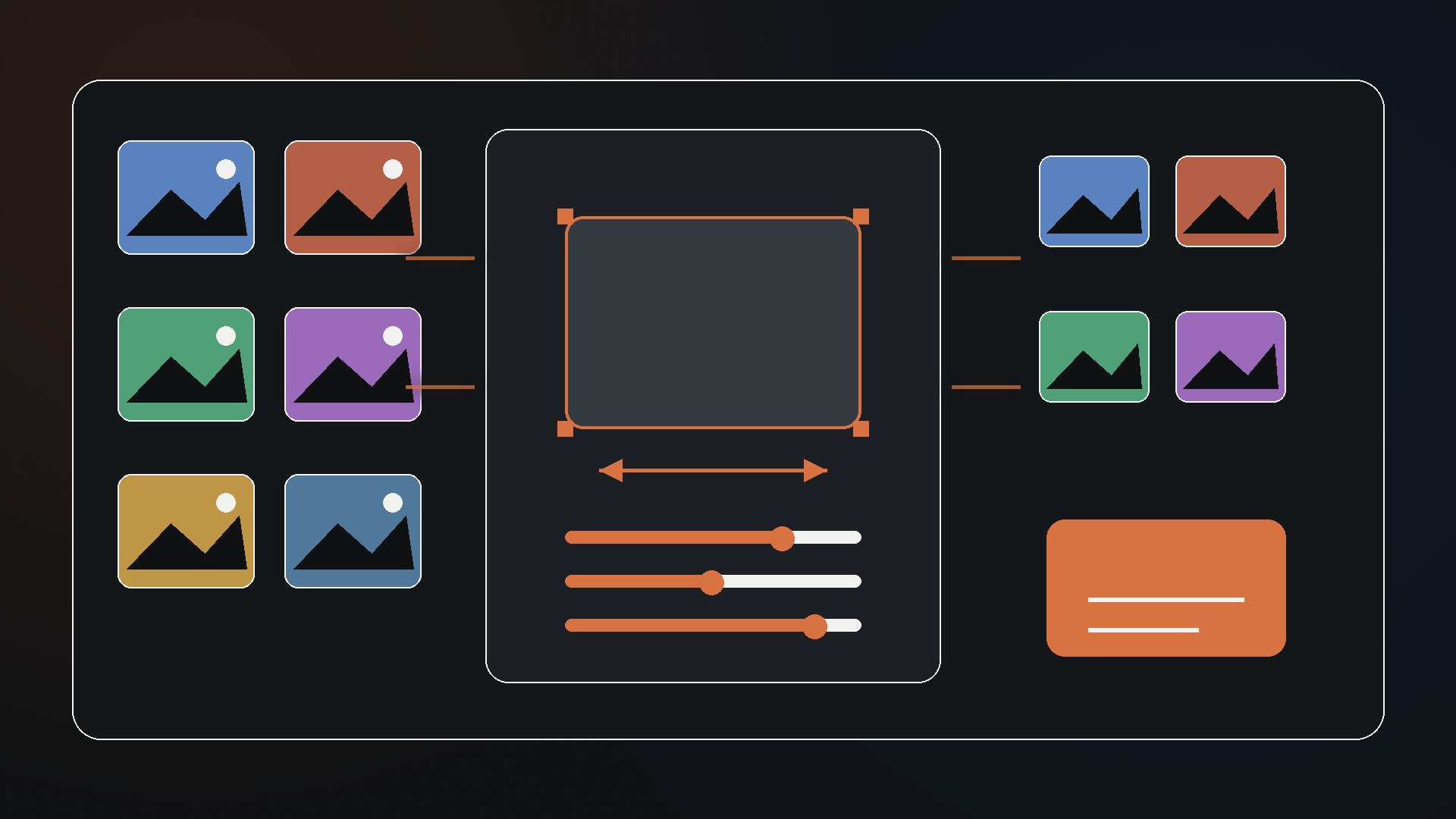
The current Bulk Image Resizer reflects how image preparation actually works. A batch may need a common aspect ratio, a different file format, controlled compression, predictable filenames, a background for transparent assets, a ZIP archive, and a manifest that records what happened. The app now treats those decisions as one repeatable workflow.
Why image resizing is a pipeline
A 4,000-pixel photo can be reduced to 1,200 pixels and still be unsuitable for production. It may remain too large, carry an opaque filename, use the wrong format, reveal metadata, crop the subject badly, or lack the alternate sizes a responsive page needs. The operational question is not “did the image get smaller?” but “is the output ready for its destination?”
Different dimensions, formats, names, and transparency.
Fit, fill, stretch, percentage, or original dimensions.
Choose JPEG, PNG, or WebP and balance fidelity against bytes.
Create predictable, sortable filenames for a whole batch.
Preview files, download individually, or export a ZIP and manifest.
Current capabilities
Queue browser-readable image files and apply one configuration across the set.
Use fit, fill, stretch, percentage, or original sizing with exact width and height controls.
Convert output format and adjust quality, transparency background, and target size.
Standardize a batch instead of manually renaming each downloaded file.
Inspect output before packaging, with visual guides for crop and safe areas where available.
Package files, produce a CSV manifest, and generate responsive image markup for web use.
Format and quality trade-offs
| Format | Best fit | Watch for |
|---|---|---|
| JPEG | Photographs and opaque imagery where broad compatibility matters | No transparency; repeated re-encoding can create artifacts |
| PNG | Logos, UI captures, line art, and images requiring transparency | Photographic files can be much larger than JPEG or WebP |
| WebP | Modern web delivery where smaller files and transparency may both matter | Quality settings and workflow compatibility should be tested |
Targeting a file size is not the same as guaranteeing it. Compression is content-dependent: a flat illustration and a detailed photograph respond differently at the same quality setting. The right workflow previews representative outputs and checks both visual damage and transfer size.
Local processing and metadata
The browser can decode images, draw them to a canvas or offscreen canvas, and encode new blobs without sending the pixel data to an application server. That architecture keeps the normal processing loop on the user’s device and avoids waiting for an upload-and-download round trip.
Re-encoding through a canvas commonly drops source metadata because the output is a newly encoded image rather than a byte-for-byte copy. That can be useful for privacy, but it also means photographers and production teams should not assume EXIF, orientation notes, color profiles, captions, or rights metadata will survive. Keep original files and verify outputs before archival or professional delivery.
A practical batch workflow
- Keep untouched originals in a separate folder.
- Define the destination first: article hero, product thumbnail, social card, archive, or email.
- Choose dimensions and resize mode based on that destination.
- Select the output format and test quality on the most detailed image in the batch.
- Use a filename template that remains meaningful outside the ZIP.
- Preview crops, transparency, and small text before processing the entire queue.
- Export the batch and retain the manifest when traceability matters.
What changed since launch
The original PixelMint announcement emphasized convenience: bulk resizing, several formats, aspect-ratio controls, and no installation. Those are still foundational, but the product now goes further into production work. Conversion, quality control, filename templates, presets, previews, target sizing, responsive markup, and batch reporting make it useful beyond a one-off resize.
The new function-first name also removes ambiguity. “Bulk Image Resizer” is a better promise because it describes the job directly, while the page and interface can explain the broader optimization workflow.
Frequently asked questions
The current app is designed to process images in the browser. Users should still evaluate browser, extension, device, and organizational security requirements for sensitive files.
Animated inputs may be readable by the browser, but the current workflow processes a still frame rather than preserving an animation timeline.
The current build provides JPEG, PNG, and WebP output, with controls for size, quality, background, and naming.
Jivaro now uses function-first app names. “Bulk Image Resizer” is clearer in search results, links, and the Apps catalog.
Related Jivaro apps
Resize, compress, convert, rename, crop, and export multiple image variants with AVIF and HEIC support privately in your browser.
Open appAdd text, logo, combined, or tiled watermarks with per-image placement, filename variables, and reusable presets, then export JPG, PNG, WebP, or ZIP files locally.
Open appCrop and convert PNG, JPG, WebP, GIF, BMP, and AVIF images to optimized SVG, remove backgrounds, refine or recolor palettes, and export files or a ZIP.
Open appSources and references
- Bulk Image ResizerJivaro · first-party
- MDN: HTMLCanvasElement.toBlob()MDN Web Docs · reference
- MDN: OffscreenCanvas.convertToBlob()MDN Web Docs · reference
- MDN: WorkerGlobalScope.createImageBitmap()MDN Web Docs · reference