
Four kinds of document comparison
| Comparison type | Best for | Preserves or detects | What it misses |
|---|---|---|---|
| Plain-text diff | Code, Markdown, copied clauses, CSV, simple text | Insertions, deletions, replacements, line or word changes | Visual formatting, styles, objects, page layout |
| Semantic or redline comparison | Contracts, policies, drafts, editorial review | Meaningful word and phrase changes in context | Pixel-level layout and some document metadata |
| Format-aware document comparison | DOCX revisions, styled reports, legal blacklines | Text plus selected formatting, comments, moves, headers, or tables | May depend on application-specific structure and settings |
| Visual PDF comparison | Print-ready files, graphics, forms, page design | Rendered text, images, page elements, backgrounds, positioning | Underlying semantic structure and OCR confidence |
Microsoft Word’s legal blackline comparison can compare text, comments, formatting, and other revisions and place the result in a third document, leaving the source files unchanged. Adobe Acrobat’s comparison tool focuses on rendered PDF differences, including text, images, graphics, headers, footers, annotations, formatting, and backgrounds. These are different instruments for different evidence.
For a consequential review, combine content-level comparison with a format or visual check. The redline tells you what the words did; the rendered comparison tells you what the page did.
Why formatting gets lost
A DOCX file is not a flat stream of text with decoration applied afterward. Microsoft’s WordprocessingML documentation describes paragraphs containing one or more runs, where each run is a region of text sharing properties such as formatting. A typical document also contains separate package parts for styles, comments, headers, footers, footnotes, endnotes, settings, relationships, media, and other structures.
This means two files can display the same sentence while representing it differently internally. A single visible word may be split across multiple runs because part of it is bold, linked, tracked, or field-generated. Conversely, a tool that extracts visible text may correctly recover the wording while losing the style and package relationships that produced the page.
PDF creates the opposite problem. It is designed to describe a fixed visual result. The order in which text is stored may not match natural reading order, and scanned pages may contain no selectable text at all until OCR is applied. A pixel-level comparison can detect visual changes, but it may not understand that two differently wrapped paragraphs express identical content.
Therefore, “without losing formatting” should mean one of two things:
- The source files remain untouched, and the comparison report clearly separates content and format changes.
- The result is produced inside a format-aware application capable of representing the original structure and revisions.
No plain-text redline can preserve every feature of an arbitrary DOCX or PDF. It can, however, preserve the originals and give reviewers a fast, local view of textual change.
Prepare the files before comparing
- Identify the authoritative original. Do not rely on filenames such as
final-v7-revised-2.docx. Confirm the source, timestamp, author, and approval state. - Preserve immutable copies. Work from duplicates or a comparison that produces a third result. Hash or archive originals when chain of custody matters.
- Resolve or note tracked changes. Existing unresolved revisions can make later comparison ambiguous. Microsoft warns that if a version already contains tracked changes, Word may ask to accept them before comparison.
- Normalize only when justified. Converting both documents to plain text removes formatting noise but also removes evidence. Keep the originals even if you create normalized comparison copies.
- Choose character, word, line, or block granularity. Character-level diffs are useful for identifiers and numbers; word-level diffs are easier for prose; line-level diffs fit code and structured text.
- Define exclusions. Decide whether headers, footers, comments, fields, tables, images, styles, and whitespace should count as changes.
A review process should be additive: original, revised, comparison result, and decision record. The comparison output is evidence about the documents, not a replacement for them.
A reliable comparison workflow
Keep immutable copies of the original and revised files.
Use a format-aware application or extract text locally for a content review.
Generate side-by-side and inline views at the right granularity.
Inspect tables, lists, numbering, headers, graphics, and page breaks in the rendered files.
Accept, reject, annotate, and export a comparison summary.
Review in passes. The first pass asks whether substantive content changed. The second asks whether formatting changes alter meaning, hierarchy, or usability. The third checks identifiers, numbers, dates, names, references, and obligations. The final pass verifies the rendered output.
For lengthy documents, prioritize high-risk areas: definitions, scope, payment, termination, liability, privacy, security, warranties, exhibits, and cross-references. A diff can find a changed word; only domain review can determine whether that word changes the deal.
Use the Jivaro Document Comparison & Redline Tool
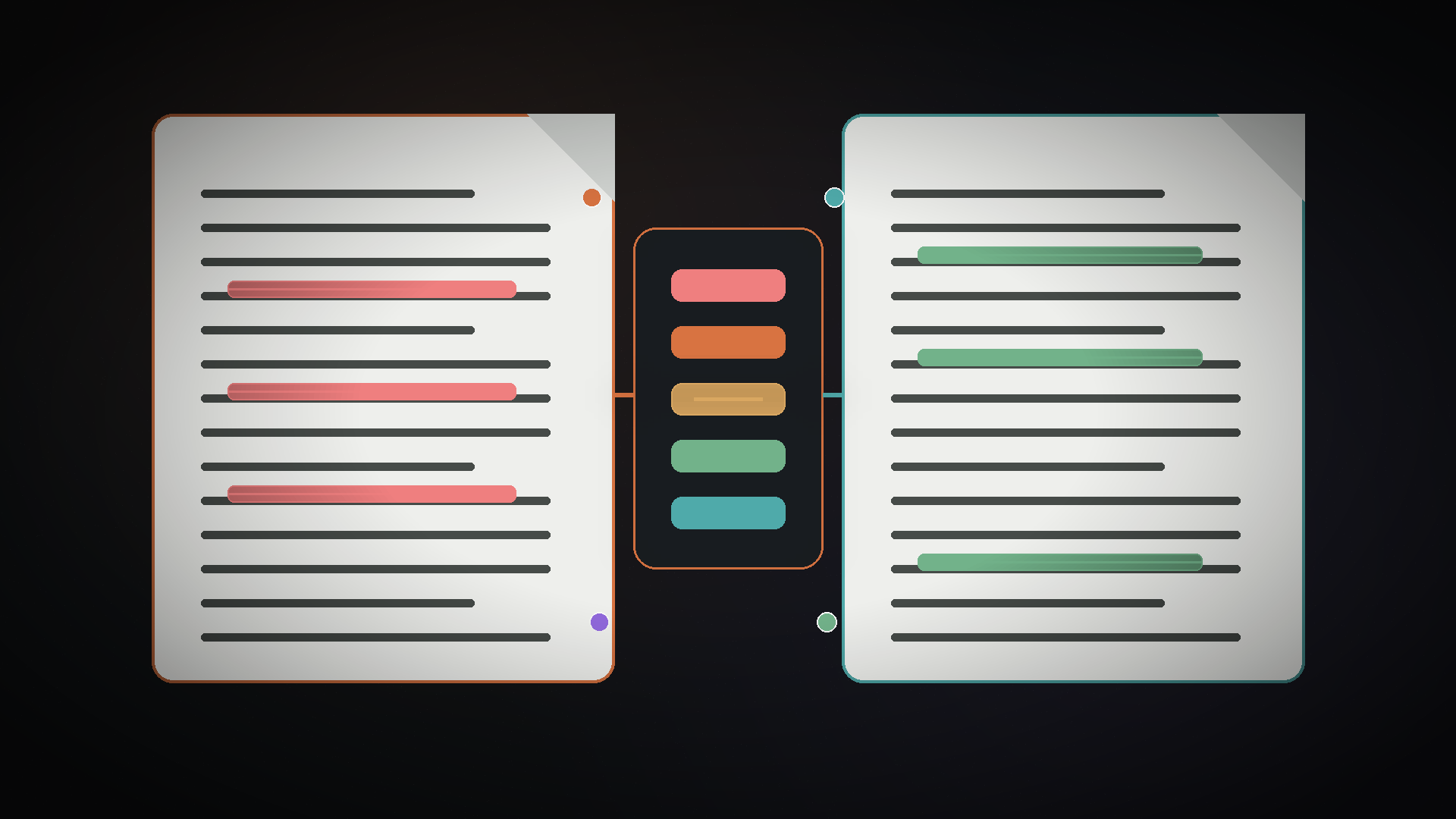
Jivaro’s Document Comparison & Redline Tool is designed for local, content-level review. It supports pasted text, TXT, Markdown, CSV, HTML, DOCX text extraction, and selectable-text PDF extraction, with side-by-side and inline redline views.
Paste or open the baseline document in the original pane. Confirm that the extracted text is complete and in the expected order.
Load the second file or text. If it is a PDF, verify that the text is selectable; scanned pages require OCR first.
Use side-by-side review for context and inline redline for a compact sequence of insertions and deletions.
Review counts and changed passages, then search for critical terms, numbers, names, and obligations.
Open the original files beside the redline to verify tables, numbering, styles, images, headers, and layout.
Save the comparison or summary with the source versions and the reviewer’s decisions.
It is a fast local redline and text-comparison workspace. It does not claim to reproduce every DOCX style, embedded object, tracked revision, or PDF pixel. Use it to find wording changes, then use the native document or a visual comparison for formatting and layout evidence.
DOCX, legal blacklines, and tracked changes
Track Changes and Compare solve related but different problems. Track Changes records edits as they are made in a document. Compare reconstructs differences between two versions after the fact. Microsoft’s guidance shows that the legal blackline option produces a third document and can compare changes at the character or word level, with options for comments, formatting, and other revision types.
Use Track Changes when reviewers are working inside one controlled document and attribution matters. Use Compare when you receive a revised file with no trustworthy revision history, when two branches diverged, or when you need to prove what changed between versions.
Before accepting all changes, inspect the reviewing pane and filtering settings. Hiding formatting or reviewer markup does not remove it. For final delivery, confirm that no unresolved changes or comments remain and that the “clean” view is actually clean.
PDF and scanned documents
A PDF comparison needs two checks:
- Textual: Did words, numbers, fields, or annotations change?
- Visual: Did images, positions, fonts, pagination, headers, backgrounds, or graphics change?
Selectable PDFs can often be extracted for a text redline. Scanned PDFs require OCR, and OCR introduces uncertainty. Common errors include confused characters, lost columns, merged lines, hyphenation, and incorrect reading order. Treat OCR as a transcription that needs validation, not as a perfect representation of the page.
For print-ready, financial, engineering, or regulatory documents, use a visual PDF comparison in addition to text review. Adobe’s Compare Files feature explicitly separates types of changes and produces a summary. Other tools can perform similar work, but the principle is the same: visual evidence should be reviewed as visual evidence.
High-stakes review requires more than a diff
Contracts, policies, technical specifications, regulated filings, and safety procedures need a controlled review record. Add:
- document identifiers, versions, dates, and source locations;
- named reviewers and review scope;
- change categories and risk ratings;
- links between redline findings and approval decisions;
- verification of cross-references, defined terms, exhibits, and signatures;
- a final rendered-file check;
- retention rules appropriate to the matter.
Automated comparison improves coverage and speed; it does not replace judgment. A one-word change from “may” to “shall” can matter more than hundreds of formatting differences. Conversely, a moved decimal point or hidden column can be visually small and operationally severe.
Common comparison mistakes
The redline is internally correct but answers the wrong version question.
Converting to plain text removes evidence before the reviewer decides whether it matters.
Recognition errors are mistaken for author changes.
Markup filters hide unresolved changes without removing them.
A “12 changes” summary says nothing about severity or meaning.
The result cannot be audited because source versions were overwritten.
Frequently asked questions
Yes. A text-extraction and redline tool can compare the visible wording, and some third-party tools understand DOCX structure. For full Word-specific formatting, comments, fields, and tracked revisions, Word’s own Compare feature remains the strongest reference.
No. It can preserve the source files and show content changes, but it does not reproduce every style, table, field, object, header, or page-layout change.
It is a comparison result showing differences between an original and revised document. Microsoft Word can create a third document containing tracked differences while leaving both sources unchanged.
Run OCR to create searchable text, verify recognition accuracy, compare the extracted text, and separately inspect a visual page comparison. OCR errors should not be treated as document edits.
Use character-level comparison for identifiers, numbers, and small technical changes. Use word-level comparison for prose because it is easier to read. Line-level comparison fits code and structured text.
Only if you understand the data path. Prefer local processing for sensitive drafts, confirm whether files are uploaded or retained, and follow organizational rules for legal, customer, employee, or regulated information.
Related Jivaro apps
Compare document versions locally with synchronized side-by-side views, inline redlines, moved-text detection, and PDF reports for text, DOCX, selectable PDFs, Markdown, CSV, and HTML.
Open appExtract and review text from PDFs, scans, images, Office files, spreadsheets, HTML, CSV, Markdown, and plain text, then export searchable PDFs or structured text locally.
Open appSources and references
- Microsoft Support: Compare document differences using legal blacklineMicrosoft Support · reference
- Microsoft Support: Track changes in WordMicrosoft Support · reference
- Microsoft Learn: Structure of a WordprocessingML documentMicrosoft Learn · reference
- Adobe Acrobat: Compare PDF filesAdobe · reference