

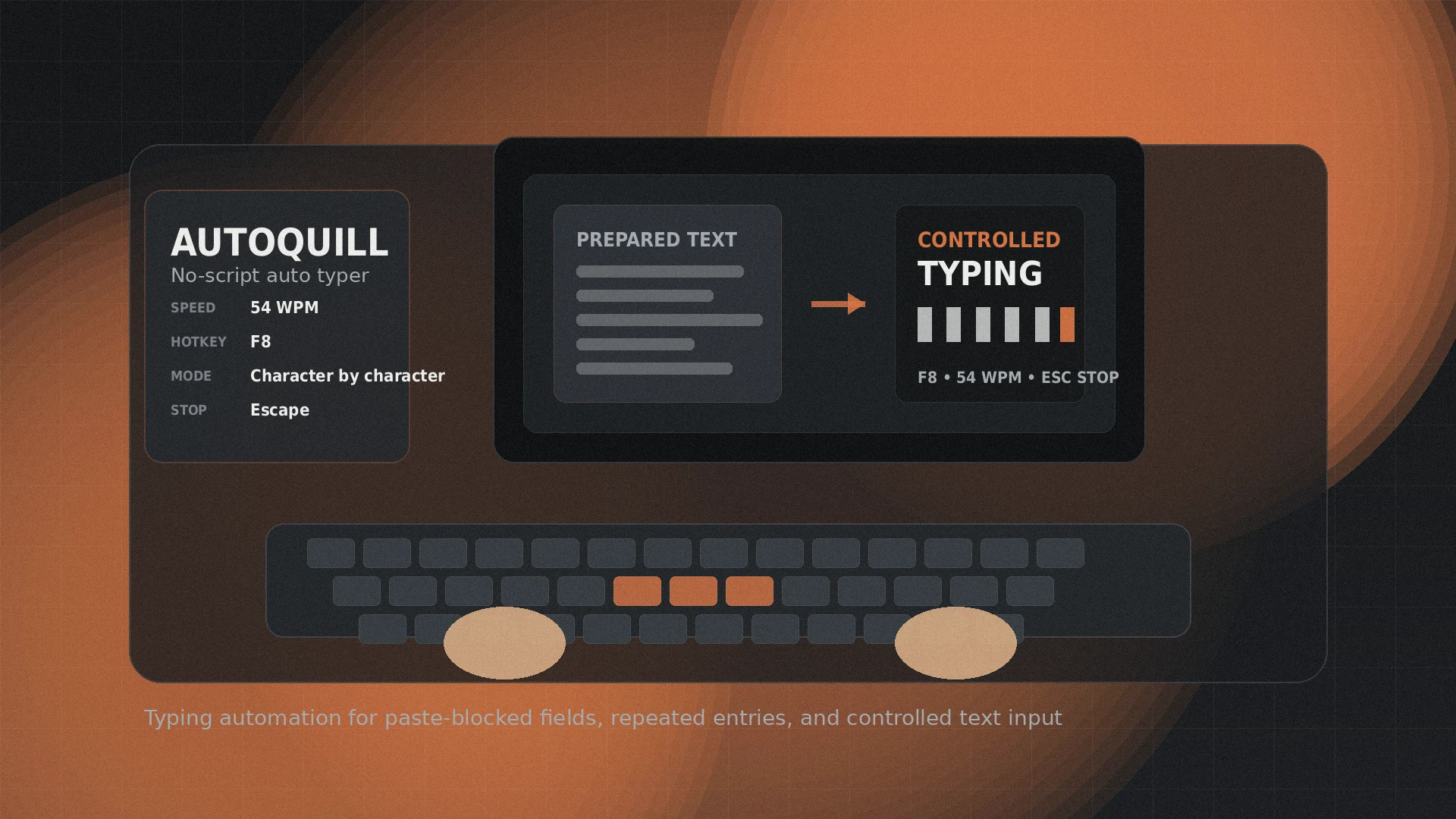
An auto typer is useful when prepared text needs to appear in a field at a controlled pace. That is a narrower job than full desktop automation. If your task is repeated text entry, paste-blocked forms, canned replies, test data, or structured typing, the right tool is the one that gets text into the target field without forcing you to build a script first.
That is why AutoQuill is the easiest recommendation for most nontechnical Windows users. AutoHotkey is far more flexible if you want to write scripts. Espanso is excellent for snippets and text expansion. MurGee Auto Typer is a paid Windows utility with a traditional auto-typer interface. For a free, practical, no-script auto typer focused on controlled text entry, AutoQuill is the cleanest fit.
Quick verdict: the best auto typer depends on the job
If you only remember one thing from this guide, use this rule:
- Pick AutoQuill for no-script controlled typing on Windows.
- Pick AutoHotkey if you want a scripting language for hotkeys, app control, logic, and custom workflows.
- Pick Espanso if your main task is cross-platform text expansion and reusable snippets.
- Pick MurGee Auto Typer if you specifically want its paid Windows interface and are comfortable with its license model.
AutoQuill vs AutoHotkey vs Espanso vs MurGee
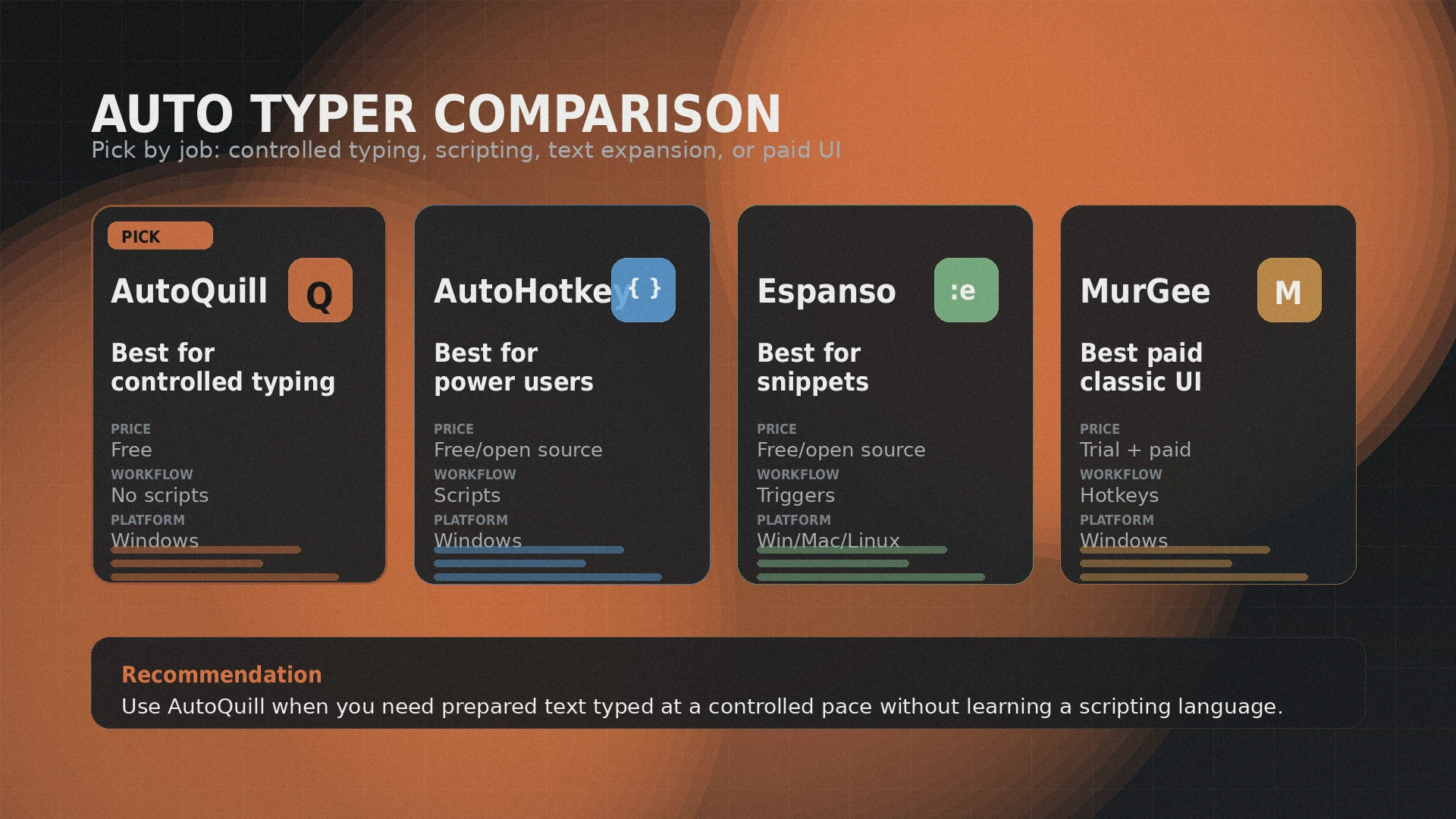
The tools overlap, but they are not built for the same kind of user. AutoQuill is aimed at controlled typing. AutoHotkey is a scripting tool. Espanso is a text expander. MurGee is a classic paid auto typer.
| Tool | Best for | Price signal | Platform | Main tradeoff |
|---|---|---|---|---|
| AutoQuill | Prepared text typed at a controlled pace without scripts. | Free | Windows | Focused typing tool, not a general automation language. |
| AutoHotkey | Custom hotkeys, scripts, macros, window control, and deeper Windows automation. | Free and open source | Windows | More setup and scripting knowledge required. |
| Espanso | Text expansion, reusable snippets, dates, forms, search, and cross-platform templates. | Free and open source; donation-supported | Windows, macOS, Linux | Designed around expansion triggers, not long-form controlled typing. |
| MurGee Auto Typer | Paid Windows auto typing with hotkeys and configurable speed. | Free trial; official page lists USD $8.76 to unlock one computer for up to six months | Windows | Paid, time-limited unlock model after trial. |
Why AutoQuill is the default pick for simple typing
AutoQuill wins the simple auto-typer category because it treats typing as a focused workflow. You prepare text, choose a hotkey, set the pace, focus the target field, and let the tool type character by character. That is the job many people mean when they search for an auto typer.
The main advantage is that AutoQuill does not ask a nontechnical user to write a script before doing the basic job. You do not need to learn an automation language, build a macro file, or design a snippet library before the first run. That makes it a good fit for paste-blocked fields, repeated entries, internal forms, test data, support replies, structured drafts, and other controlled typing sessions.
AutoQuill is not trying to replace AutoHotkey. It is narrower. That is the point. AutoHotkey can automate more, but it also asks more from the user. AutoQuill is the better fit when the work is “type this text into that field at this pace.”
What AutoQuill can do
AutoQuill is built around practical typing controls rather than general scripting. The useful features are the ones that affect the typing session directly.
| Feature | What it means in practice |
|---|---|
| Character-by-character typing | Prepared text is sent as typed input instead of being pasted all at once. |
| Adjustable speed | Set a typing pace that fits the target field or workflow. |
| Function-key activation | Start typing with a configured function-key hotkey. |
| Inline commands | Use commands such as [ENTER], [TAB], and repeated tab commands inside prepared text. |
| Dynamic tokens | Insert runtime values such as date, time, or clipboard text when supported by the workflow. |
| Pause, resume, and stop | Control a typing run instead of letting it continue blindly. |
| Profiles | Reuse different settings for different kinds of typing sessions. |
How to use AutoQuill
The basic workflow is short:
- Open AutoQuill.
- Paste or write the text you want to type.
- Choose the typing speed and activation key.
- Add inline commands only where needed.
- Click the target field in the app or website.
- Press the activation key and watch the output.
- Stop, pause, or edit the run if the target field does not behave as expected.
For serious work, run a short test before sending a long block. Type a sentence into a harmless field first. Confirm that the target accepts the spacing, line breaks, tab movement, and special commands. Then run the full text.
AutoQuill vs AutoHotkey
AutoHotkey is the power-user option. Its GitHub project describes it as a free, open-source macro-creation and automation utility for Windows, driven by a custom scripting language with support for hotkeys. The same page lists AutoHotkey as a Windows automation and scripting project and shows recent v2 releases.
That makes AutoHotkey the right tool when you need logic, loops, window control, keyboard remaps, hotstrings, file operations, or application-specific automation. It is also the tool to pick when the text-typing job is only one step in a larger automated workflow.
The tradeoff is time. AutoHotkey is not difficult for people comfortable with scripts, but it is still scripting. If your goal is simply to type prepared text at a controlled pace, AutoQuill is easier to start with.
Use AutoHotkey when:
- You want custom scripts and hotkeys.
- You need loops, conditions, app control, or window logic.
- You are comfortable debugging automation code.
- You want a tool that can grow into a larger Windows automation system.
AutoQuill vs Espanso
Espanso is a text expander. Its official site describes the core workflow clearly: Espanso detects when you type a keyword and replaces it while you are typing. The project also describes itself as open source, licensed under GPL-3, and cross-platform across Windows, Linux, and macOS.
Espanso is excellent for signatures, canned replies, snippets, dates, code fragments, reusable templates, and text you insert many times over months or years. Its documentation also supports file-based configuration, matches, packages, forms, and script extensions.
That is different from AutoQuill. Espanso is the right choice when you want short triggers that expand into prepared snippets. AutoQuill fits one-off or session-based controlled typing where you paste a block into the tool, set a pace, and type it into a target field.
Use Espanso when:
- You want a reusable snippet library.
- You work across Windows, macOS, and Linux.
- You want trigger-based text expansion.
- You need dates, forms, or package-based snippet collections.
AutoQuill vs MurGee Auto Typer
MurGee Auto Typer is closest to AutoQuill in purpose. Its official page says the utility types text with a configurable hotkey or shortcut key, supports configurable typing speed, and works on Windows 11, Windows 10, Windows 8.1, and other Windows versions. The same page lists a free trial and a USD $8.76 unlock for one computer for up to six months.
That makes MurGee a reasonable option if you want its specific paid interface and license terms are fine for your use case. The downside is obvious: it is not free long term. For a user who wants a free controlled typing tool, AutoQuill is the easier pick.
Use MurGee when:
- You want a traditional paid Windows auto-typing interface.
- You prefer the MurGee utility workflow.
- You are comfortable with the trial and unlock model.
- You do not need open-source tooling.
Which auto typer should you choose?
Use the tool that matches the actual work:
Choose AutoQuill
You need prepared text typed into fields at a controlled pace without writing a script.
Choose AutoHotkey
You want Windows automation beyond typing and are willing to write and maintain scripts.
Choose Espanso
You want reusable text expansion across operating systems.
Choose MurGee
You want a paid Windows auto typer with hotkeys and configurable typing speed.
For most people looking for “an auto typer” rather than “an automation language,” AutoQuill is the simplest answer. It does less than AutoHotkey, but the reduced scope is useful. The job is easier to understand, easier to test, and easier to stop when something goes wrong.
Responsible use matters
Typing automation should not be used to bypass rules, spam platforms, impersonate real activity, fake engagement, evade security controls, or submit work you have not reviewed. Treat an auto typer as a keyboard assistant, not as a substitute for judgment.
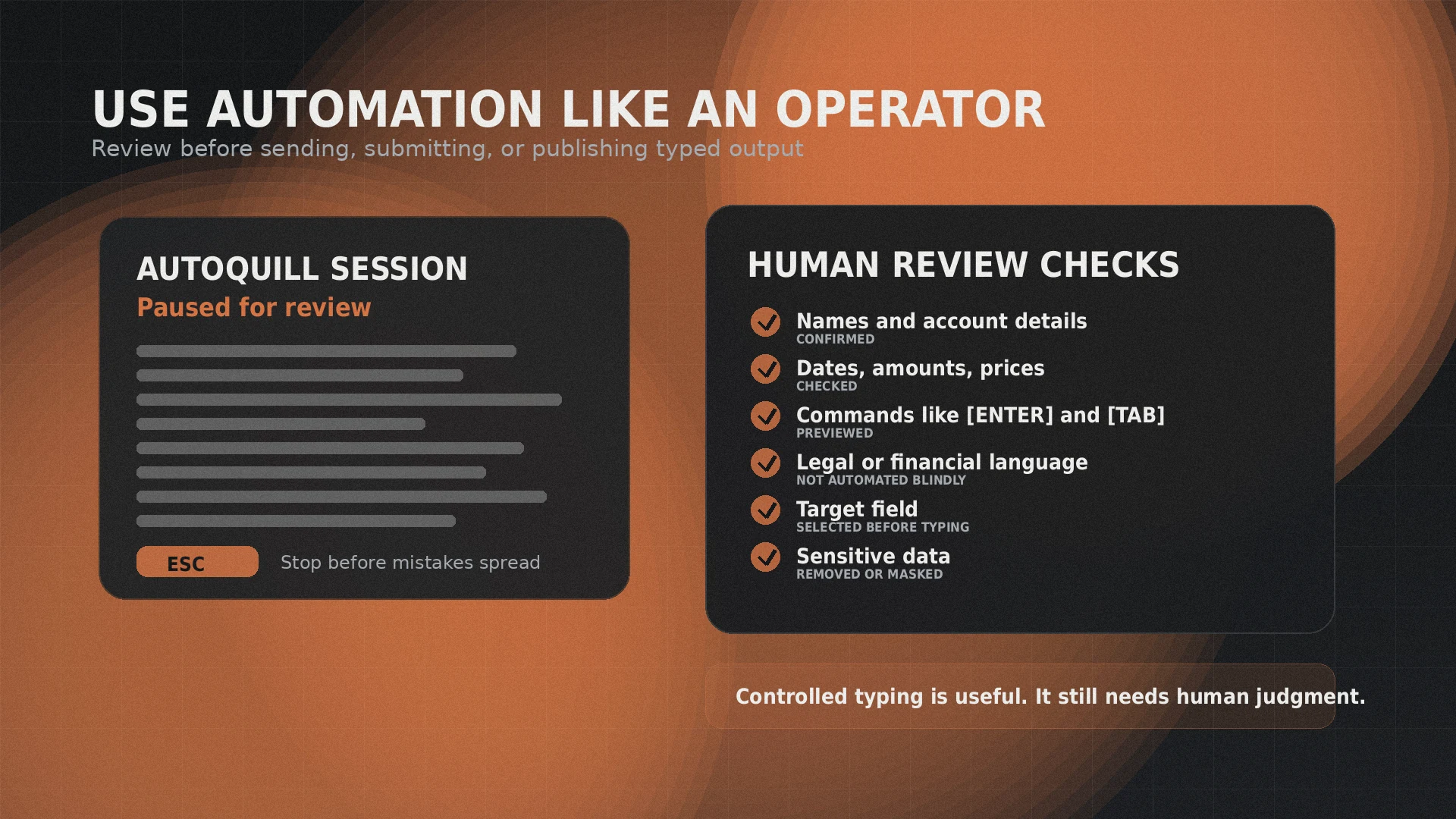
Check the output before using it in a real workflow. That is especially important for customer messages, applications, forms, invoices, scripts, legal documents, financial records, or anything that triggers another system.
Common mistakes when choosing an auto typer
- Picking the most powerful tool for a simple job. AutoHotkey is excellent, but a short text-entry task may not need a script.
- Confusing text expansion with controlled typing. Espanso is great for snippets. It is not mainly built as a long-form auto typer.
- Ignoring the stop key. Any tool that sends keystrokes needs an easy way to pause or stop output.
- Skipping a test run. Try a small sample before sending a long block into a real form.
- Automating sensitive information. Remove or mask private data when possible.
Frequently asked questions
For no-script controlled typing on Windows, AutoQuill is the easiest recommendation. AutoHotkey is better for users who want scripting, Espanso is better for text expansion, and MurGee is a paid Windows auto typer.
Yes. AutoQuill is positioned as a free Jivaro-operated typing automation tool.
For controlled typing without scripts, yes. For advanced Windows automation, AutoHotkey is more flexible.
For one-off controlled typing sessions, AutoQuill is the better fit. For reusable snippet expansion across platforms, Espanso is the better fit.
AutoQuill is the better choice if you want a free, focused typing tool. MurGee may suit users who prefer its paid Windows interface.
An auto typer can send text as simulated keystrokes instead of pasting. Use it only where automation is allowed and always review the result before submitting.
Sources and references
- AutoHotkey GitHub repositoryGitHub · reference
- Espanso official siteEspanso · reference
- Espanso Getting Started documentationEspanso · reference
- MurGee Auto Typer official pageMurGee · reference